
Faculty FAQs
Faculty FAQ's: Updated 10/14/2026
SSB9 Faculty Self-Service is a modern, user-friendly interface designed for faculty that offers a more robust user experience. The interface allows faculty to view class lists, enter final grades, view add authorizations, see detailed schedules, and much more. The system also offers a way for faculty to export class lists and manage grading status with easy to see icons to denote if a roster has been submitted.
With this new secure, compliant system, we hope that you enjoy the more modern experience in SSB9 Faculty Self-Service.
How do I get to the Faculty Dashboard?
Once you log in to MyPortal, you will see a card titled Faculty Self Service. This card will take you to your Faculty Dashboard where you will be able to interact with your grading rosters, drop rosters, detailed schedule and more.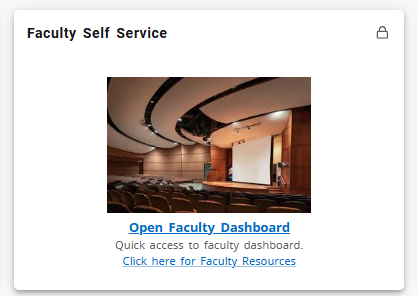
What is on the Faculty Dashboard?
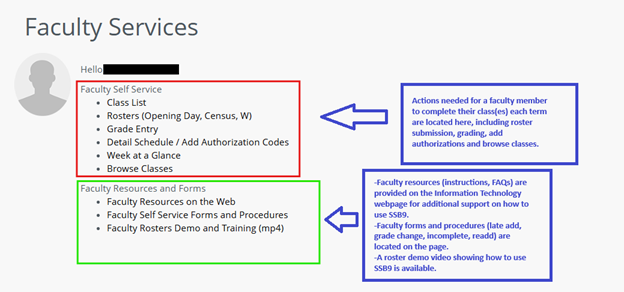
The Faculty Dashboard is where faculty can enter grades, see their class rosters, view their detailed schedule, week-at-a glance, browse the district class schedule, review resources available to them, watch a tutorial for SSB9, and extract forms necessary for grade submissions (late add/drop, grade change, and incomplete).
Where have all the faculty links gone on CLASS-WEB?
In September 2025, Ellucian notified colleges that they would no longer support SSB8 functionality beginning in January 2026. SSB8 was no longer being supported and could not receive federal or regulatory updates. The system also had security issues, and needed to be decommissioned. CLPCCD is moving as quickly as possible to move everything off and out of SSB8 to SSB9. The platform is a more modern and mobile friendly interface with increased security.
What do I do if I get the following error message, "Invalid username/password; logon denied"?
We recommend clearing your cache and cookies on your computer/laptop and closing all browser windows. Reopen the browser and log into MyPortal first, then the Faculty Dashboard.
How do I see my roster?
Go to MyPortal->Faculty Dashboard->Class List. Then click on Class List. For any of the course titles that you are teaching that term, double click on the row and your class list will populate.
A second way to see the class list is to go to Detail Schedule under Faculty Services on the Faculty Dashboard. Here you will be able to select the term, and CRN you are teaching. On the far right you will see under Roster a hyperlink for Class List. Select the hyperlink and it will take you to the list you need for the course.
How do I know which of my roster(s) are active?
When on the roster page, the roster(s) that are white in color all the way across are active.
When you hover the mouse over the row that has the active roster, it will turn light blue in color.
If the row is grey in color, it is not active, or has a future roster that will become available (see available column). At that time, the row will change back to white to interact with at that time.

How do I get my list of students out of the system?
On the Class list view there are two buttons. One is export and the other is print.
Export allows you to export the information to an Excel spreadsheet in .xls or .xlsx. Once you select the option you choose the Export hyperlink and a downloadable file will be available to you on your computer.
Print allows you to print what you see on your screen to include the enrollment counts and course information.
I want to export my class list but I don’t want all the fields, how can I remove some of the fields?
Next to the envelope, there is another icon. This is the “Related” icon. When you use the dropdown, you can uncheck the fields you want to remove from
your export.
icon. When you use the dropdown, you can uncheck the fields you want to remove from
your export.
How do I email my students with the new SSB9 system?
There are two ways you can email your students. Please make sure that you do not have any pop-up blockers on your browser settings when sending.
- Use the default email client (Outlook) which is provided from the district, on your computer/laptop. This will be the optimal way to email students through the system. Select the students with the checkmarks on the left side of the Class List or Wait List and then select the blue envelope. This will take you to the Outlook email client directly to send students emails as a BCC (blind carbon copy).
- If you access email through the webhosted (Outlook) program on your computer/laptop, select the students with the checkmarks on the left side of the Class List or Wait List and then select the blue envelope. This may prompt a box that asks you to select the mail client you wish to use. If that happens, you will want to work with the help desk to set up your default email client before continuing.
Do you have to email students separately for each list type (Class List and Wait List)?
Yes. To email students you will need to select a checkbox for each student if you aren’t selecting the entire class, or the top checkbox on the bar for all students. On the right side of the screen, you will see an envelope . Click on the envelope to receive the list of students. When you receive the emails,
they will be dropped into a bcc: email list for easy emailing.
. Click on the envelope to receive the list of students. When you receive the emails,
they will be dropped into a bcc: email list for easy emailing.
(NOTE: If you are doing this on a personal laptop and have another email system open, the emails will default to your email application client you primarily use for emailing. Make sure you define your college email application as the default client so that emails are being sent from your Chabot or Las Positas email account.)
How do I get my add authorization numbers for my course?
You must first submit your Opening Day Roster within 2 days prior to the class start and are available for 7 days after the start date. Once the Opening Day Roster is submitted, it will generally take about 10 minutes to populate add authorizations for your course. Refresh your Detail Schedule page in Faculty Self Service to see the populated add authorization numbers.
Once I submit the Opening Day Roster, can I reopen the link and/or resubmit the roster again?
Yes. During the availability window, you can resubmit the roster, do instructor drops, and even export the roster.
Where can I see add authorization numbers for my course?
Add authorizations can be found under Faculty Self Service-> Detail Schedule/Add Authorization Codes. To see the detail schedule, select the term and then the CRN for the course you wish to view.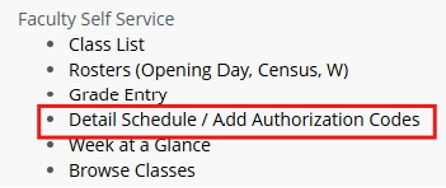
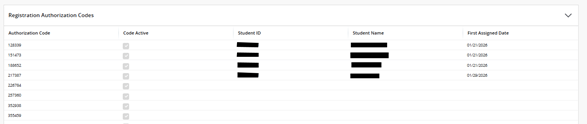
You will see a section at the bottom of the next screen titled Registration Authorization Codes. If an authorization code has been issued and used by the student, it will show the student W#, student name, and date of first assigned dated. If it has not been assigned it will be blank.
If I issued a student an add authorization number and a student cannot add the course what could be the issue?
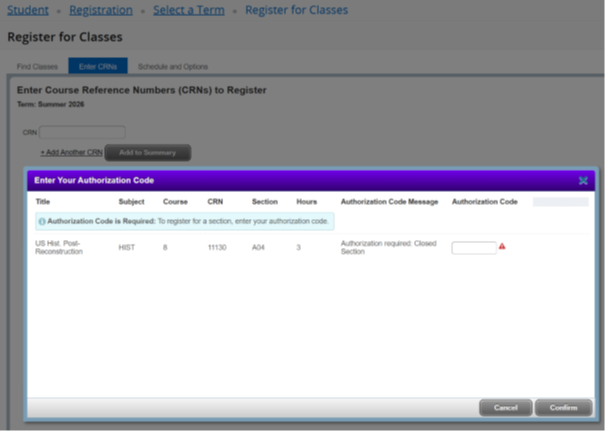
If an add authorization is given to a student who has been on the waitlist, emphasize that the student needs to drop themselves from the WL in web registration and then add themselves via the Enter CRNs from the Register for Classes area on the Registration Dashboard for students.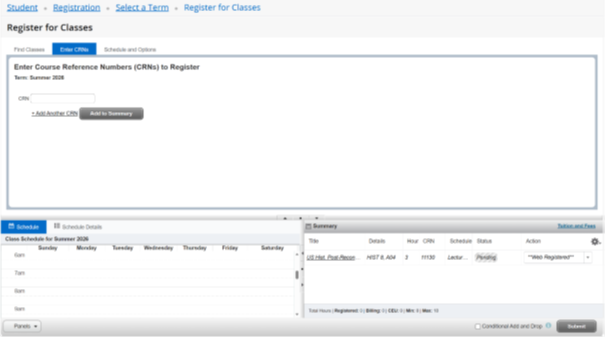
This will them prompt the student to use their add authorization code that the instructor(s) have provided to them.
Will I still be able to drop students after I submit my Opening Day Roster and receive
my add authorization numbers?
Yes. Your Opening Day Roster is available to you for 7 days after the start date. In that time period, when you go back in to your Opening Day Roster you will be able to do an Instructor Drop.
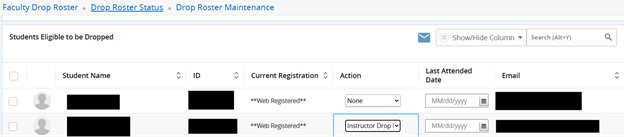
If you miss the time period that the roster is available, then you will need to submit the drop via the Faculty Resources and Forms.
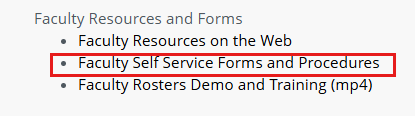
Then select the Instructor Add/Drop/Re-enrollment Request Form that corresponds with your college.
What happened to the Wait List when the class starts?
Once classes start, the Wait List closes. Add authorizations become available for courses after Opening Day Rosters are submitted and students who want to be added into a course will need to be issued an add authorization and should be instructed to do so before the end of the add/drop period or they will not be added.
In ClassWEB the Waitlist used to be prioritized, why isn’t that available now?
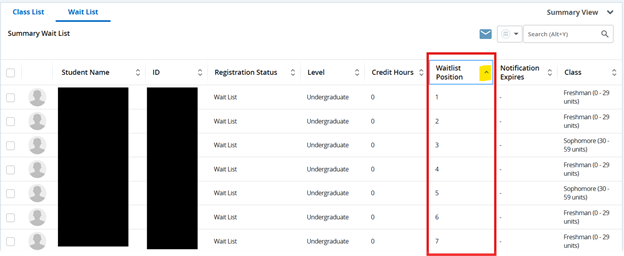
That was a modification in SSB8 that was applied to the system in ClassWEB. SSB9 has added functionality for the faculty to sort their students from the Waitist Roster. This gives the faculty member the ability to see their roster Alphabetically by Last Name OR they can sort by Waitlist Position with the sort toggle button.
Alphabetical by Student Name
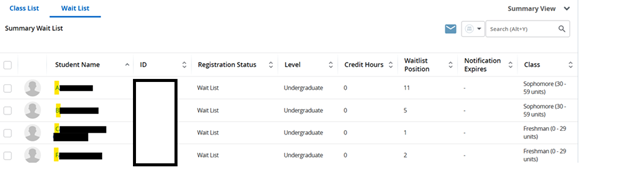
Numerical by Waitlist Position
How do I access the course deadlines information for students?
By selecting the CRN hyperlink, the class details will pop-up on the screen. Here it will show at the bottom Important Dates and the related course deadline information to share with students.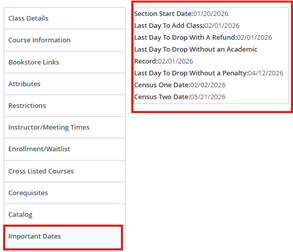
Additionally, students also have this same view when they select any course in the
class search by selecting the title to see information for the course.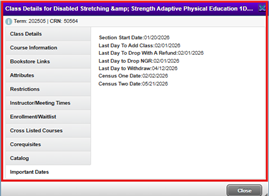
What are the Pass/No Pass Deadlines for short-term courses?
The deadline for a Pass/No Pass short-term course is the last day of instruction for each individual short-term course. There is a statement posted on each college's Academic Calendar.
What is the difference between the hyperlinked information on the Course Title and the CRN?
Course Title gives you only the catalog information for the given course.
CRN gives you both catalog information and section information to include important dates.
Where can I see everything, I am teaching for the term in one area?
Go to MyPortal->Faculty Dashboard->Week at a Glance. This will show in a grid view all courses being taught for the current term. For those courses that are taught online and are TBA, they will appear at the very bottom of the screen.
Courses that have no enrollment will not appear. Once there is enrollment, then you will see this in the Week at a Glance
What happened to the printable roster with the grid boxes that was in ClassWEB?
This was an SSB8 modification that is no longer available in SSB9. Faculty can export their Class Roster into Excel and create their attendance roster how they wish so that they can continue to track student attendance.
How do you reenroll a dropped student into the course?
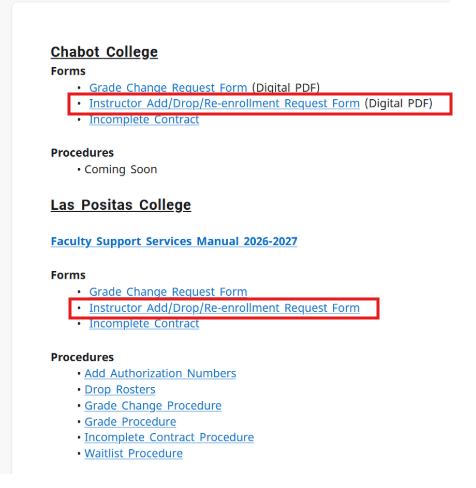
Each Admissions & Registrar office has a form for Late Add/Drop. The form can be found within MyPortal under the Faculty Dashboard.
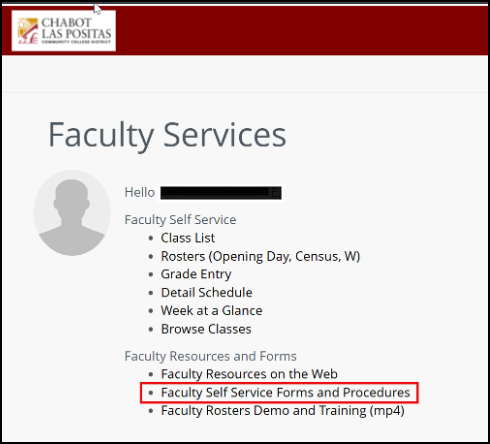
Once you click on Faculty Self Service Forms and Procedures you will see the forms available for each college and procedures the colleges have prepared. The Instructor Add/Drop/Re-enrollment Request Forms are available to complete under each respective college heading.
Do I need to enter a “Last Attend Date”?
Yes. For any student who is dropping, dropping with an NGR, or dropping with a withdrawal a “Last Attend Date” should be entered. This helps with any federal funding a student may have received and with any registration concerns that may come up after the grading period.
How do I know when drop rosters are available?
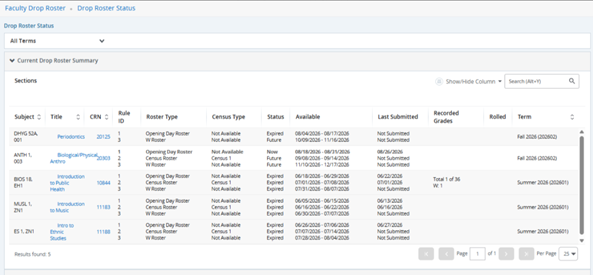
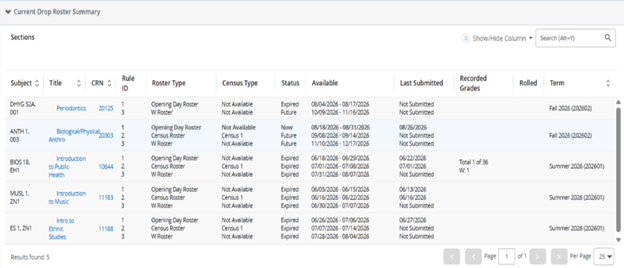
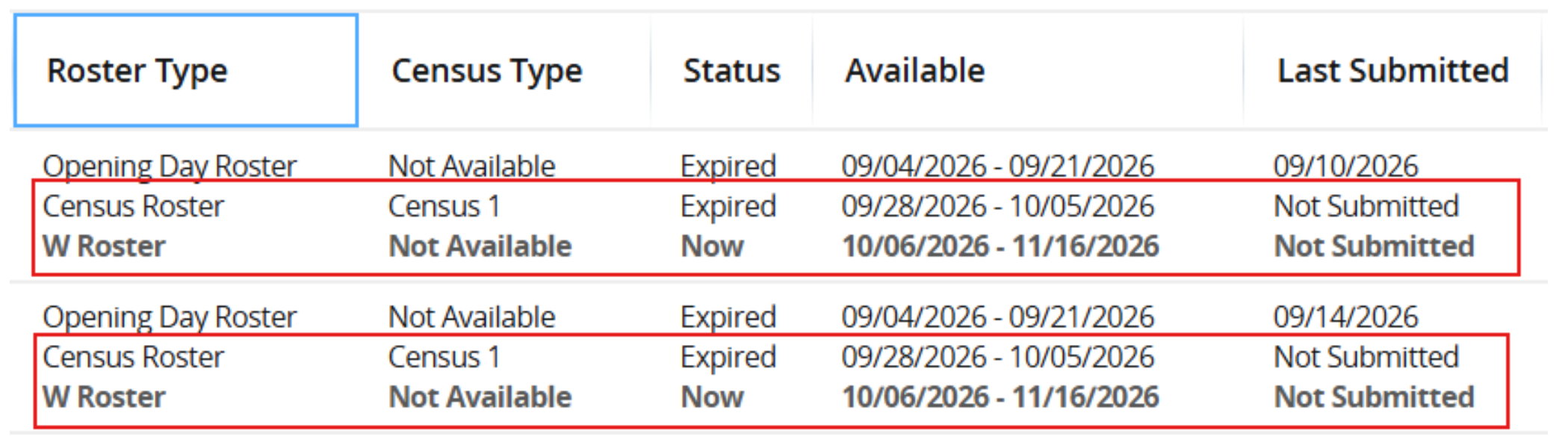
Go to Faculty Drop Roster, review the Roster Type and Status columns. More information can be found on the SSB9 Faculty ResourcesWhere can I find more information on Grade Rosters and Drop Rosters?
There are two ways that you can get to the resources for how to obtain your grade roster or drop rosters.
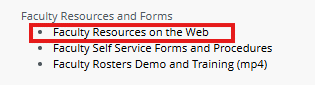
When you are on the Faculty Dashboard, you can click on Faculty Resources on the Web and it will take you to the Faculty Services page where information is outlined per area of interest.
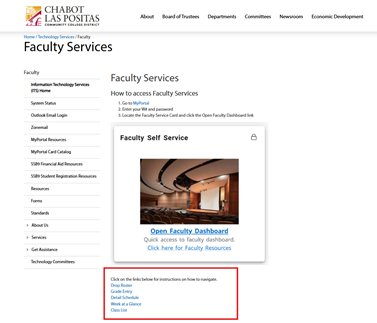
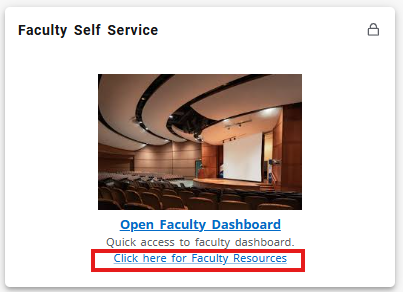
The second option is to go directly from the Faculty Self Service card by clicking on the hyperlink that says “Click here for Faculty Resources.”
Where can I find Census Dates and timing to turn the roster in by?
The Census roster will be available starting on the census date for the course. Please note the availability of the census window for submission which can be found under “Availability” on the Rosters (Opening Day, Census, W) link.
NEW: My W roster immediately follows the Census Roster again. Is this a change to the new system?
Yes. We have found a workable solution for the W roster availability. The functionality will allow you to submit your rosters much the same as you did in CLASS-Web. More information is to follow with our next upgrade of the system and will be available with Winter/Spring classes.
Where can I get additional help with Faculty Grading issues?
Your Faculty Liaison in Admissions & Records will be able to help with any faculty grading concern that you may have. If it is a system related concern with SSB9, please submit a help ticket.
NEW: Where can I see the part of term for classes that are offered?
Part of term for classes can be viewed from the Browse Classes link through the Faculty Dashboard. Click on Browse Classes under Faculty Self Service, select the term and select the part of term you are interested in viewing.
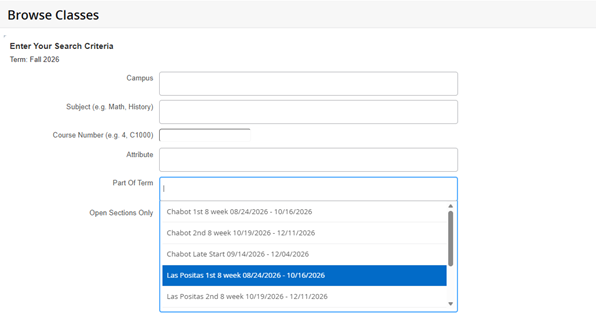
Then choose the Search button to see your results.
NEW: How do I see a specific attribute that is associated with a class that is offered?
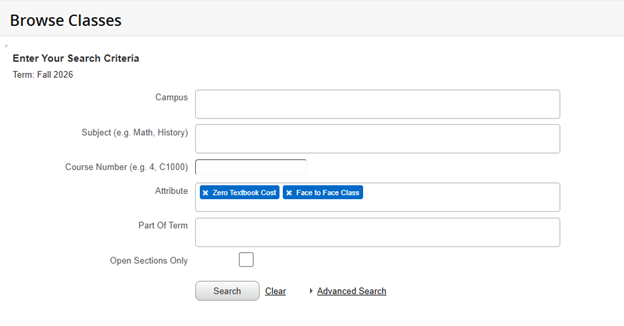
Attributes can be viewed from the Browse Classes link through the Faculty Dashboard. Click on Browse Classes under Faculty Self Service, select the term and click in the attribute field. You can scroll through the list of attributes to find the one you are interested in viewing. If you are interested in more than one, click in the field again and scroll through to select another attribute for it to populate into the field. Then select Search.
Why can't I see student personal emails?
In SSB8 this was a modification that was placed into the system. In SSB9, this is no longer available. All students will need to be directed to use and check their Zonemail.
Do students have FAQs?
Yes, student FAQs are available to them with additional information about add authorizations, registration, adding, dropping, and other information which pertains to students on the website under Student FAQs.